FastTrack
What is FastTrack?
Imagine being able to turn back time, and restore a previous version of your PopUp in seconds. FastTrack offers a guaranteed way to go back to the last working version of your PopUp environment, no matter how badly it's broken.
With FastTrack, you can take a snapshot of your entire PopUp at anytime, then roll your environment back (or forward) to one of your previous snapshots on-demand. Current changes are not lost either, so you can jump back and forth between snapshots and the latest changes to your heart's content, without worrying about losing work.
Are you...?
- Building or configuring a new PopUp? Snapshot as you go so that you can rollback if anything should go wrong, and you don't lose your work.
- Testing a new feature? Snapshot before you start testing - that initial snapshot can be used time and time again to provide a clean test environment for test reruns, with no test setup activities required.
- Upgrading a subsystem? Snapshot the current state before you upgrade so that you can compare the old and new versions side by side (2 PopUps are needed for this).
- Doing development? Snapshot before and during your development so you are empowered to innovate and try new things and not worry about breaking your PopUp. If you do, just rollback to a previous snapshot, then continue to innovate.
What's more, with FastTrack you can send any snapshot to a remote PopUp. This essentially allows you to clone an entire z/OS environment in seconds.
See FastTrack in action below.
How can I use FastTrack?
FastTrack can be accessed via:
- Dashboard – A web-based portal providing at-a-glance information and the ability to manage the PopUp with the click of a button.
- Command Line Interface (CLI) – Allows users to execute FastTrack operations via commands.
FastTrack Installation
Compatibility
All PopUps built after August 2025 are FastTrack-ready (the necessary pre-requisites for FastTrack are included). If you would like to retro-fit FastTrack into an existing PopUp, please get in touch with the PopUp Support Team.
Installation
The update package update-fast-track-X can be run safely for each update, provided the PopUp has been shutdown before execution.
1. Pre-install steps
Please ensure your PopUp z/OS is NOT running when executing the install update-fast-track-X and install-fast-track. If PopUp z/OS is running, you can:
- execute
./shutdown(asibmsys1user in the home directory) - or
fast-track shutdown(if FastTrack is already installed)
Also ensure that the IPL_PARM value is set within /home/ibmsys1/.bashrc. If IPL_PARM is not set within this file, you can:
- execute
vi /home/ibmsys1/.bashrc( asibmsys1user in home directory) - edit and set the value for
IPL_PARM
2. Copy the package to the PopUp
Note: Your PopUp may already have the FastTrack package included. If so, skip to step 4.
If not, we will provide you with an update package update-fast-track-X.zip (with 'X' being the latest version). Copy the package to your PopUp instance to the home directory (default is /home/ibmsys1). This can be done with scp or file transfer tools.
3. Execute the update
- Unzip the package
unzip update-fast-track-X.zip - Run
chmod 755 update-fast-track-Xto make it executable. - Ensure that your PopUp z/OS is NOT running (see pre-install steps)
- Verify
IPL_PARMis set within/home/ibmsys1/.bashrc(see above) - Execute
./update-fast-track-X
The update package will do the following:
- move existing
~/fast-track directory(if any) to~/.fast-track-${timestamp} - unpack the tarball into
~/fast-track - suggest the user runs
~/install-fast-track
4. Install fast-track
Install the package by running install-fast-track
The install script will:
- run
install-dependenciesto add dependencies to yum / apt (RHEL subscription may be required) - setup the required storage pools for FastTrack
- start the FastTrack application automatically after setup & run continuously in the background
5. Validate the install
To confirm that the FastTrack web application is running, execute the following as ibmsys1 user in the home directory:
sudo systemctl status fast-track-ui --no-pager
The service should indicate that it is active and running.
Open the dashboard in your browser.
FastTrack Dashboard
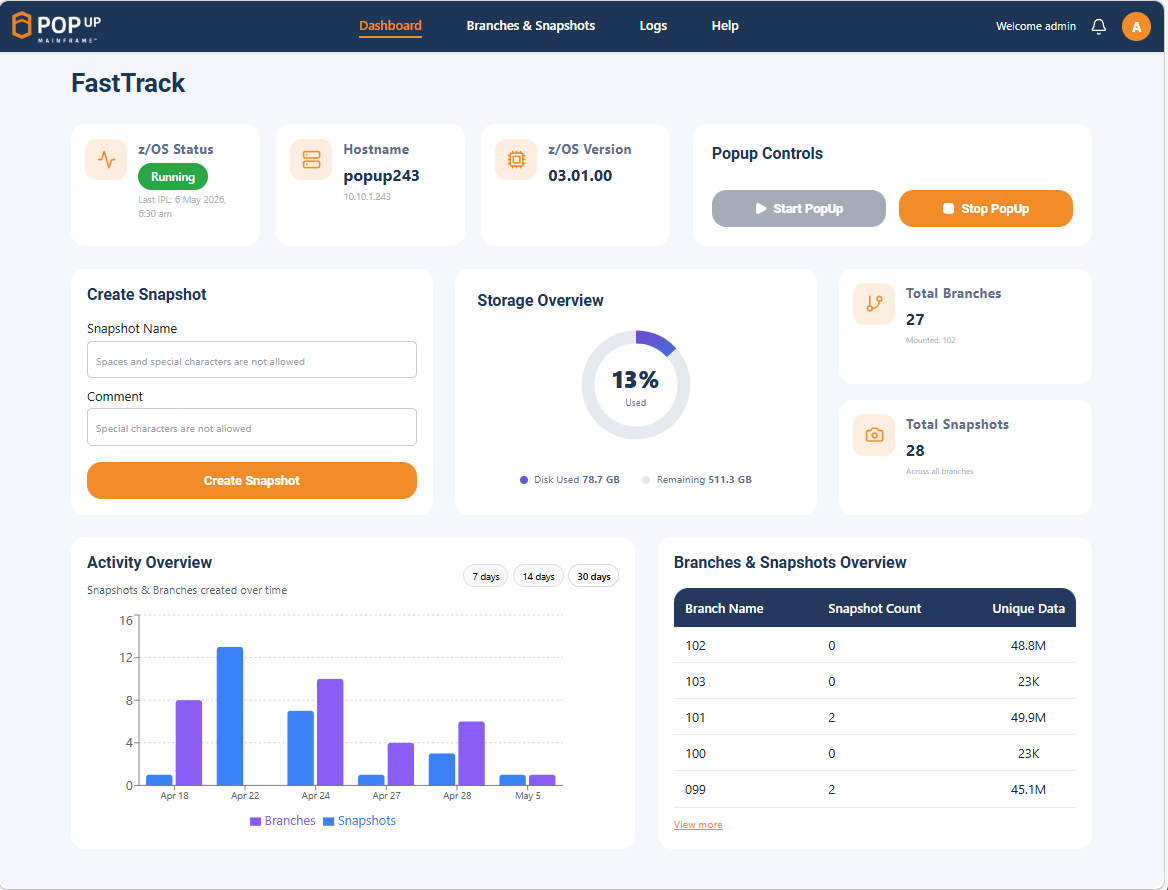
FastTrack comes with an inbuilt dashboard - a web interface which enables users to view information about the PopUp and snapshots, and perform actions such as starting and stopping the PopUp, taking a snapshot, and switching to a snapshot.
The dashboard runs on the PopUp VM (on the Linux layer). Each FastTrack dashboard is associated with one PopUp instance.
Access the FastTrack application in a web browser by connecting to port 5000 on the PopUp host
http://<popup-ip-address>:5000/
The default login credentials are:
- username: admin
- password: Fasttrack@123
Dashboard Home Page
The home page provides a centralized view of the status of your PopUp. It displays:
- status of z/OS
- hostname
- z/OS version
- total number of branches and snapshots and recent activiy graph
- storage overview
The home page also enables you to perform the following actions:
- start or stop the PopUp
- take a new snapshot
Branches & Snapshots Page
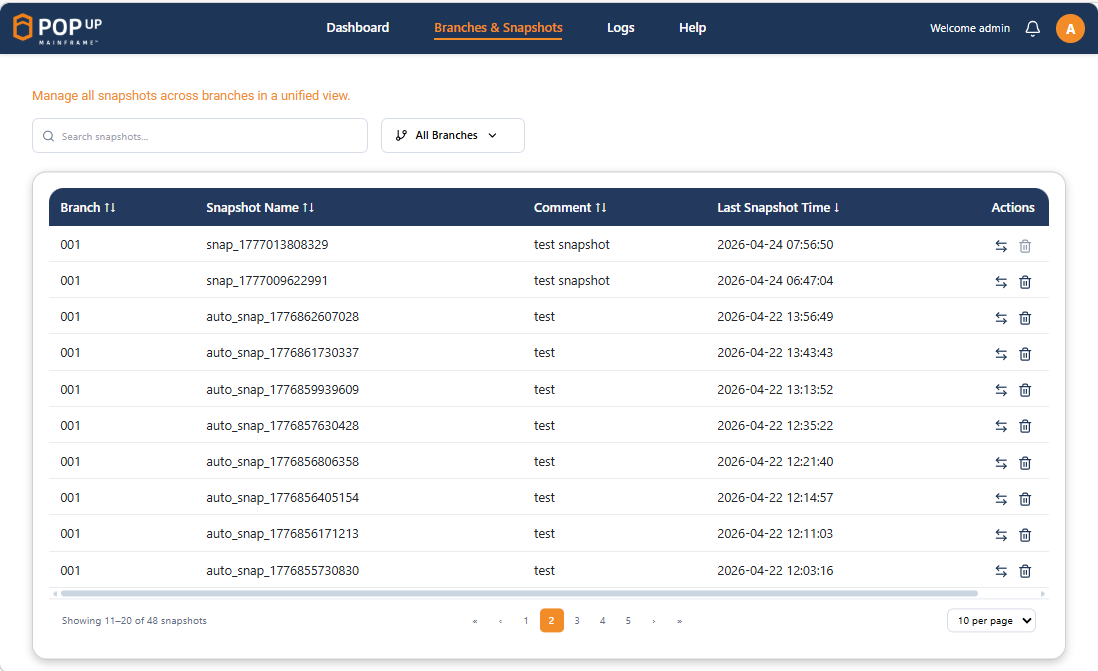
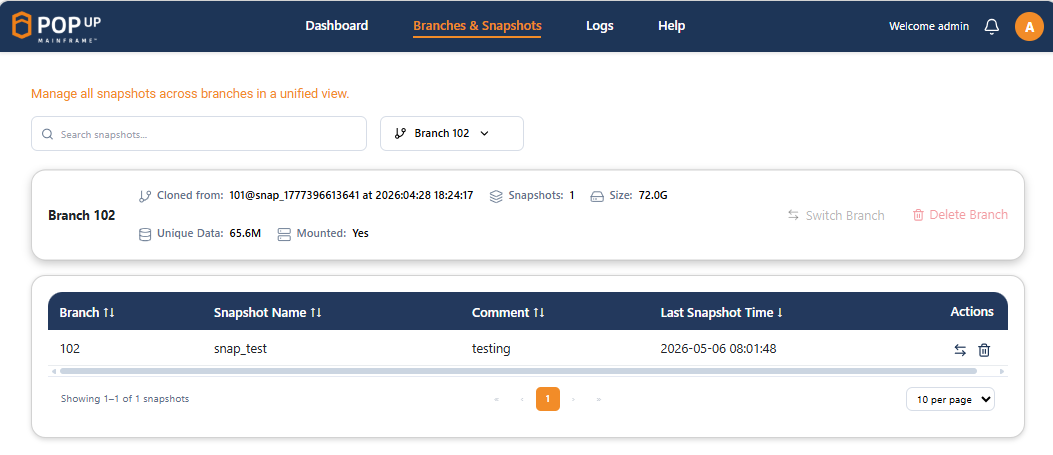
The Branches & Snapshots page enables users to view and manage snapshots across all branches with search, filter and sort options. It displays:
- last snapshot time
- snapshot name and comment
- where each branch originated
- storage usage for each branch
- which branch is currently mounted
- and more...
The Branches & Snapshots page also enables you to perform the following actions:
- switch to a snapshot
- delete a snapshot
- switch to a branch (the
headof that branch) - delete a branch (only available if that branch is not used by any other branch)
Logs Page
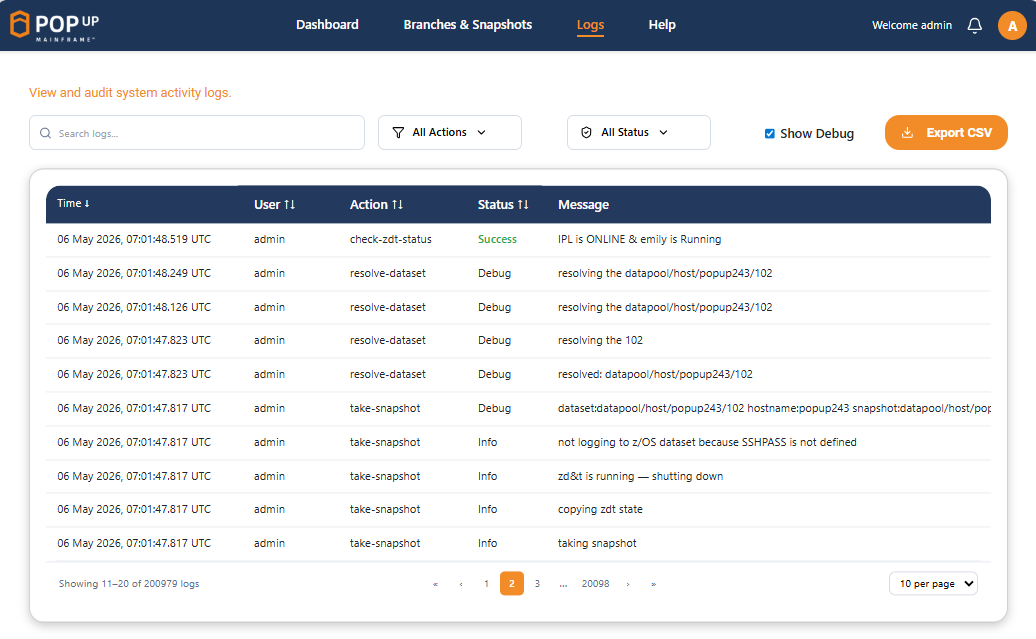
The Logs page displays all FastTrack logs to help you monitor actions, track status and audit system behavior. It provides search, filter and sort options, and displays:
- action, for example take-snapshot
- which user initiated the action
- status
- message, giving more details on the action
- debug logs can be viewed if required
The Logs page also enables you to export the logs in CSV format.
FastTrack CLI
Help
Help displays the current commmands and options available to the user.
fast-track help

Status Information
Display current verion of FastTrack.
fast-track version

Display current status.
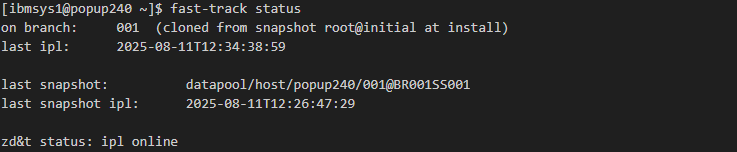
The status tells you which branch you are currently on, last snapshot, datapool information and last IPLs time, and if your PopUp is currently running or offline.
fast-track status
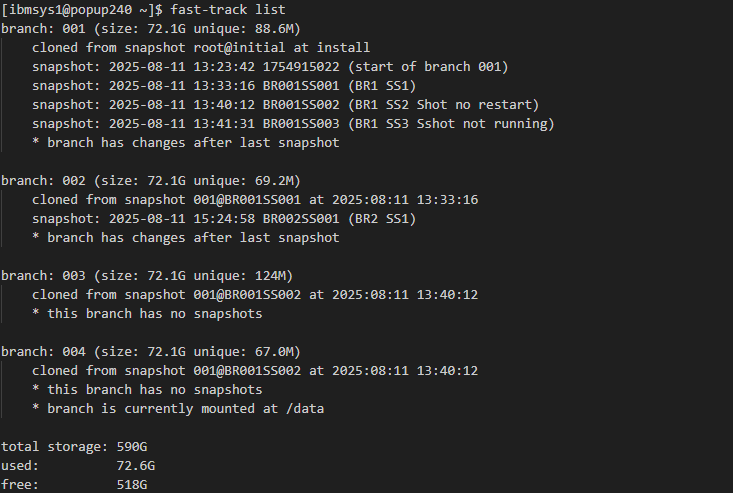
Display a list of all branches. The list command gives you a list of all branches and snapshots as well as total storage, used storage and free storage. Each branch has a message that explains the reason for the branch for example 'cloned from snapshot root@initial at install' tells us that branch 001 is the initial branch created at install time.
fast-track list
Start and Stop PopUp
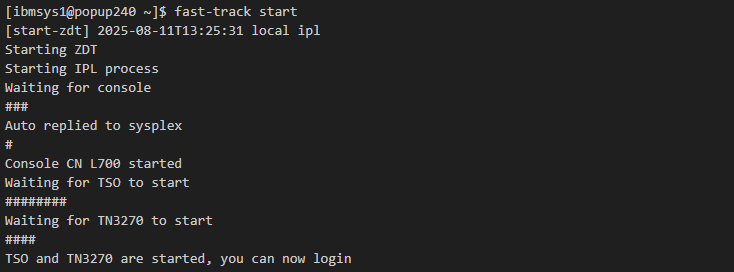
Start the FastTrack PopUp.
fast-track start
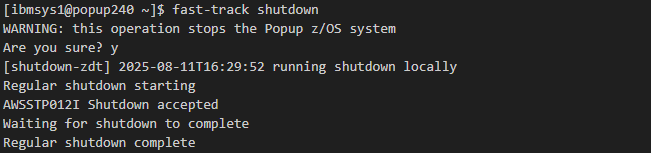
Stop the FastTrack PopUp.
fast-track shutdown
Take a Snapshot
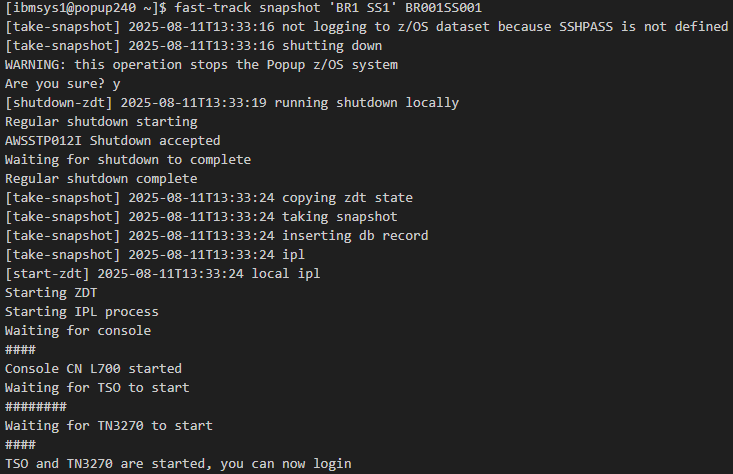
Take a snapshot of the FastTrack PopUp.
A snapshot will shutdown the PopUp to ensure no work is in progress and ensures we have a consistent point-in-time. The user is prompted to ensure they want to go ahead. If a prompt is not required the '-f' option is provided to skip the prompt, which is useful for automated snapshots.
Snapshots can also be taken if PopUp is not running. FastTrack checks the status of the PopUp to determine what happens after the snapshot. If the PopUp is running before the snapshot, the default behaviour is to start it after a snapshot, unless you provide the '-S' option. If the PopUp is not running before the snapshot, the PopUp will not be started after the snapshot.
You can provide a comment/tag for the snapshot enclosed in quotes, for example 'BR1 SS1 - First snapshot'. The maximum comment length is 64 characters, if you do not provide a comment, a default comment will be used. You can provide a snapshot name after the comment, for example 'BR001SS001'. The maximum number of characters for a snapshot name is 32, if you do not provide a snapshot name, a default name will be used.
fast-track snapshot [-f] [-S] comment snapshot-name
Switch to a Snapshot
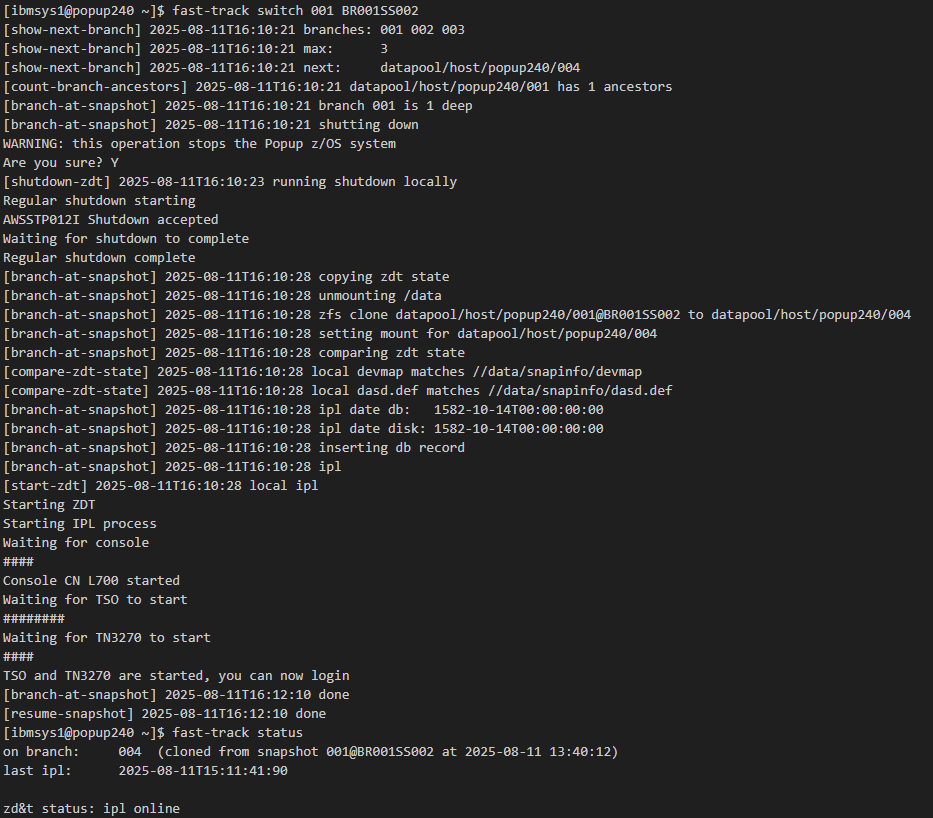
Switch allows you to switch to another snapshot or branch. When switching to a snapshot a new branch is created, which allows you to return to your current branch at a later point. When switching to a branch HEAD you return to the latest point on that branch and a new branch is NOT created.
The PopUp will need to be shutdown when switching and the user will need to confirm this when prompted unless the '-f' flag is used. The '-S' option can be used if you do NOT want the PopUp to be restarted after the switch.
The screenshot below shows us switching back to Branch 001, snapshot BR001SS002. Note that branch 004 has been created, with a comment providing info on the snapshot used and the time when the snapshot was created.
fast-track switch [-f] [-S] target-branch target-snapshot-or-HEAD
Provision Additional Instances of FastTrack PopUp
You can send ANY snapshot to a remote FastTrack-enabled PopUp, and instantly have another identical PopUp environment available. Example scenario:
- Setup a PopUp and load it with your application data
- test and validate this PopUp version. Call this the baseline
- Once the baseline PopUp has been validated, take a snapshot
- send this snapshot to a remote PopUp to have an instantly available clone of the baseline
- this baseline snapshot can be sent to as many remote PopUps as you need
- each one of the remote PopUps can now function completely independently, and can use the FastTrack snapshot capability too.
Note: each PopUp will need a license in order to IPL.
Setup send
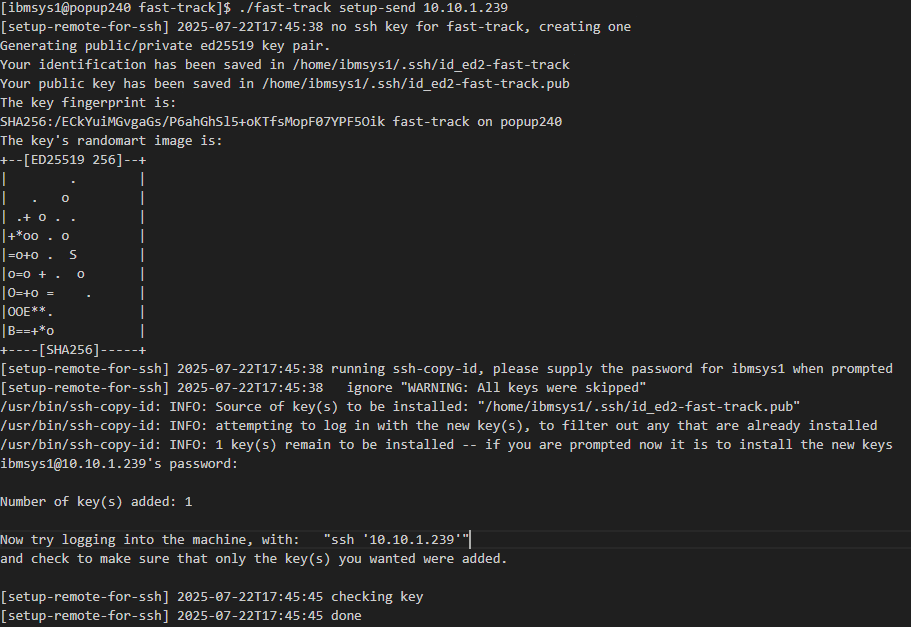
This is a one-time ssh setup for sending a snapshot to a remote PopUp instance. A local ssh key is created if needed.
Connectivity requirements:
- The remote PopUp needs to be pingable from the source PopUp (configuration might be required for Cloud instances)
- the public ssh key required to login to the remote host must be available on the source PopUp.
fast-track setup-send remote-host
Send Snapshot to a Remote PopUp
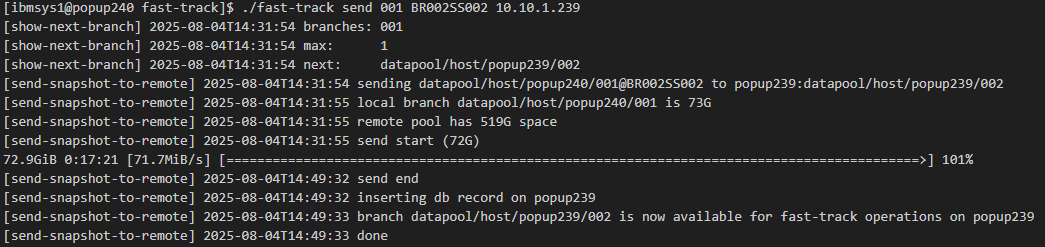
This command sends a snapshot to a remote FastTrack PopUp instance. The speed of the transfer will depend on the network.
Once the transfer of the snapshot file is complete, on the remote PopUp you can run the fast-track list command, and you will see the transferred snapshot listed under a new branch. The transfer does not affect z/OS on either the source or remote PopUps, and work can continue as normal on both PopUps. The PopUp is NOT automatically restarted on the remote instance. When you are ready to switch to the newly transferred snapshot on the remote PopUp, run the fast-track switch command, detailed above.
fast-track send branch snapshot remote-host
Branch and Snapshot Administration
These commands will probably not necessary in day-to-day use of a PopUp, but are described here for clarity.
Delete Snapshot
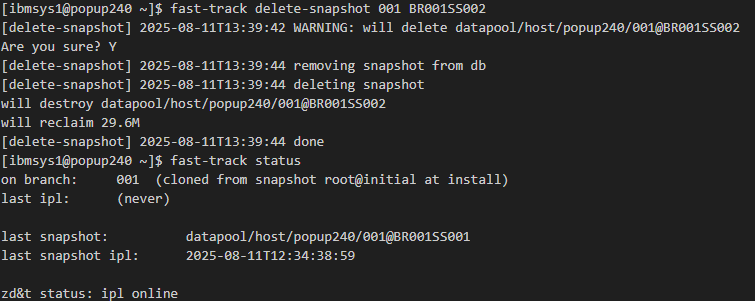
This command allows you to delete any snapshots you no longer require. Snapshots are 'cheap' and do not use much disk space, so it is unlikely you will need to delete them. However, you can if you wish.
A warning prompt is presented to the user before the snapshot is deleted. The PopUp is not shutdown with this command.
fast-track delete-snapshot branch snapshot
Delete Branch
The 'delete-branch' command allows you to delete any branches you no longer require. Branches, like snapshots, are 'cheap' in terms of disk space, and it is unlikey you will need to delete them. However, you can if you wish.
FastTrack will not allow you to delete your current branch or a branch that has been used to create another branch. A warning prompt is presented to the user before the snapshot is deleted. The PopUp is not shutdown with this command.
fast-track delete-branch branch

Page last revised on: 2026-08-12