Troubleshooting: Common Errors & Solutions on a PopUp
IPL errors
TN3270 Connection Blocks During IPL
During IPL, TN3270 clients may attempt to connect and inadvertently seize the master console session. This disrupts the IPL process by preventing the initialization script from maintaining exclusive access to the master console.
To safeguard system stability, our updated IPL script temporarily restricts 3270 connections until initialization is complete, ensuring proper startup before user access is allowed.
If you are unsure whether you have the latest script, please contact PopUp support.
Error 4 occurred on 1 - License unavailable
Error 4 occurred on 1 during IPL

Root cause
This is caused when the PopUp license is not available to the PopUp server.

Permanent Fix
Try the following (in order):
- Check the
zdt.logfile to verify any error messages. - Ensure the license is present and valid.
- Login into the license server and check the number of licenses being used. This can be done by running this command on the license server
/opt/IBM/LDK/query_license. More information on the license server here. - Check that the firewall script has been run (see below).
- If none of these steps work, contact PopUp support.
Error 244 occurred on 1 - Initialization Failure
Error 244 occurred on 1 during IPL

Root cause
devmap error – Initialization failure

Permanent Fix
- Check on any recent updates done to the devmap and ensure devmap is configured correctly.
- Suggest validating path and volumes specified as these might be missing or incorrectly specified.
Firewall script errors
Firewall script not running
Once the zdt_setup is completed, check whether the firewall has been executed. In some cases, firewall is not executed on reboot. If so, execute it manually (as described below) and contact PopUp support to permanently address this issue.
Verification
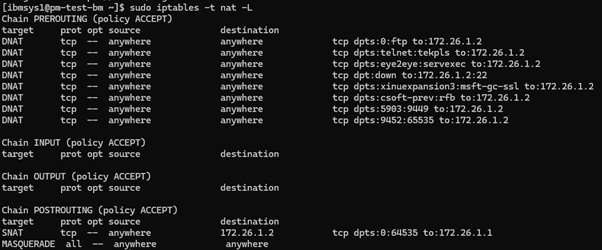
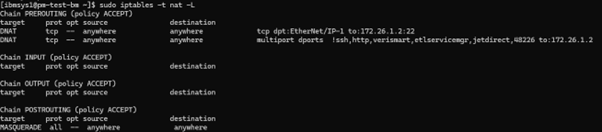
To check if the firewall script has executed, use the following command:
sudo iptables -t nat -L
- If the firewall has not run, the output will appear as below:
- If the firewall has run, the output will appear as below:
Root Cause
Firewall script not executed.
Resolution
If the firewall has not been executed since reboot, use the following command to call the firewall script:
sudo /usr/local/bin/firewall
Then verify again:
sudo iptables -t nat -L
Ensure that the NAT rules are now populated as in the image above.
TSO login & authentication errors
LOGIN fails
Unable to LOGON into ZD&T; “LOGON PROCEEDING ERROR”

Root cause
This issue occurs whenever the spool volume gets filled up.
Temporary Fix
Run the below command from the spool/master console:
$P JOBQ,Q=PPU,DAYS>30
This will purge all the jobs that are greater than 30 days.
Permanent Fix
Add additional volumes to the spool volume group.
Session Limits
zPDT instance has no 3270 connections available
This error typically occurs when all available TSO (Time Sharing Option) sessions on a z/OS system are in use, and a new user or job attempts to start a TSO session but cannot be allocated one.
Permanent Fix
To increase the number of available TSO terminals or sessions, two configuration points need to be updated:
- At the Linux level, by modifying the devmap file
- At the z/OS level, by adjusting the VTAM definitions
Devmap Changes
Include additional lines for the device, like 0702,0703,0704 etc.
name aws3274 0002
device 0700 3279 3274
device 0701 3279 3274
……..
……..
……..
……..
VTAM Changes
The second required change is in the member A0600 within ADCD.Z*.VTAMLST. Locate the A06TSO entry and add any necessary lines to support additional terminals. After updating, activate the changes by either performing a re-IPL or issuing the command:
V NET,ACT,ID=A06TSO01
A06TSO APPL AUTH=(NOACQ,NOBLOCK,PASS,NOTCAM,NVPACE,TSO,NOPO),
EAS=1,ACBNAME=TSO


A06TSO01 APPL AUTH=(NOACQ,NOBLOCK,PASS,NOTCAM,NVPACE,TSO,NOPO),
EAS=1,ACBNAME=TSO0001

A06TSO02 APPL AUTH=(NOACQ,NOBLOCK,PASS,NOTCAM,NVPACE,TSO,NOPO),
EAS=1,ACBNAME=TSO0002
Out of space error
The amount of space is fixed based on what you allocate to ZD&T and the most common error will be:
“D37 = end of volume”
Root cause
The PopUp has run out of storage space.
Permanent Fix
You can create as many DASD volumes as you like but the golden rule is do not have your devmap config greater than your underlying linux storage. You can of course add more disk space to linux.
To check underlying file system run df -h and see if you have run out of linux storage.
create_volumes script errors
Note : Testing of error cases is performed on a modified copy of the script (cr8_vol_v2.0). The script name in screenshots can be ignored.

Newly created volume is not visible in the PopUp
If a new volume is created manually, it may not be accessible in the PopUp unless the devmap has been updated accordingly.
Permanent Fix
Update the devmap to add the new volumes, and submit the jobs for volume initialisation and SMS conversion. Alternatively, use the create_volumes utility, which will take care of these aspects.
Note : If you're defining devices manually, ensure that the device IDs do not conflict with any existing ranges, and verify that volume names are unique to avoid duplication.
Volume count limit error
- If the total volume count is about to exceed 256, the script will display:
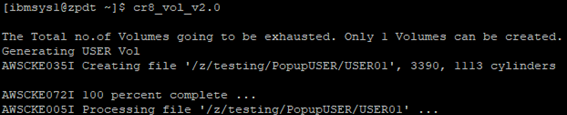
- If the total volume count exceeds 256, the script will display:

Fix
Please contact PopUp support.
Disk storage error
- If disk storage is going to be full, the script will display:
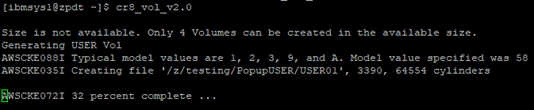
- If disk storage is full, the script will display:

Fix
Please contact PopUp support.
Error in volume initialization job
- If there is any error or non-zero return code, the message will be:
There is an error in Volumes initialization job JOBID: <job_id>. Kindly resolve the error and Submit the job
Fix
Please contact PopUp support.
Error in SMS conversion job
- If there is any error or non-zero return code, the message will be:
There is an error in conv2sms job JOBID: <job_id>. Kindly resolve the error and Submit the job.
Fix
Please contact PopUp support.
Db2 errors
Db2 not operational
This error appears when there is no enough storage available for DSNC10.DBCG.* or DSND10.DBDG.* datasets on SGARCH Storage group/SGBASE storage group
Permanent Fix
Add additional Volumes to those storage groups.
Take a loot at create_volumes utility, for creating new volumes.
Db2 not starting up
If Db2 is not shut down gracefully or encounters integrity issues, it may fail to start correctly. In such cases, the DBCGMSTR address space can abend with an S04F error.
The following snippet from the DBCGMSTR job log shows an S04F abend, along with the RBA information corresponding to the checkpoint recorded in the BSDS dataset (DSNC10.DBCG.BSDS01).
00.43.35 STC65314 IEC161I 062-086,DBCGMSTR,DBCGMSTR,BSDS1,,,DSNC10.DBCG.BSDS01, 805
805 IEC161I DSNC10.DBCG.BSDS01.DATA,USERCAT.Z24C.DB2VC
00.43.35 STC65314 IEC161I 056-084,DBCGMSTR,DBCGMSTR,BSDS2,,,DSNC10.DBCG.BSDS02, 806
806 IEC161I DSNC10.DBCG.BSDS02.DATA,USERCAT.Z24C.DB2VC
00.43.35 STC65314 IEC161I 056-084,DBCGMSTR,DBCGMSTR,BSDS2,,,DSNC10.DBCG.BSDS02, 807
00.43.40 STC65314 S DBCGDBM1 807 IEC161I DSNC10.DBCG.BSDS02.INDEX,USERCAT.Z24C.DB2VC
00.43.35 STC65314 IEC161I 062-086,DBCGMSTR,DBCGMSTR,BSDS2,,,DSNC10.DBCG.BSDS02, 808
808 IEC161I DSNC10.DBCG.BSDS02.DATA,USERCAT.Z24C.DB2VC
00.43.36 STC65314 DSNJ127I -DBCG SYSTEM TIMESTAMP FOR BSDS= 24.129 00:31:55.31
00.43.40 STC65314 DSNJ001I -DBCG DSNJW007 CURRENT COPY 1 ACTIVE LOG 844
844 DATA SET IS DSNAME=DSNC10.DBCG.LOGCOPY1.DS04,
844 STARTRBA=00000000007E78C6E000,ENDRBA=00000000007E7AE2DFFF
00.43.40 STC65314 DSNJ001I -DBCG DSNJW007 CURRENT COPY 2 ACTIVE LOG 845
845 DATA SET IS DSNAME=DSNC10.DBCG.LOGCOPY2.DS04,
845 STARTRBA=00000000007E78C6E000,ENDRBA=00000000007E7AE2DFFF
00.43.40 STC65314 DSNJ099I -DBCG LOG RECORDING TO COMMENCE WITH 846
846 STARTRBA=00000000007E7A20A000

00.43.45 STC65314 DSNX801I -DBCG DSNX8INI ACCELERATOR PROCESSING STARTING
00.43.46 STC65314 S DBCGDIST
00.43.48 STC65314 DSNR001I -DBCG RESTART INITIATED
00.43.48 STC65314 DSNR003I -DBCG RESTART…PRIOR CHECKPOINT RBA=00000000007E7A20F5ED
00.43.52 STC65314 IEF450I DBCGMSTR DBCGMSTR – ABEND=S04F U0000 REASON=00000000 222
222 TIME=00.43.52
00.43.52 STC65314 IEF404I DBCGMSTR – ENDED – TIME=00.43.52
00.43.52 STC65314 $HASP395 DBCGMSTR ENDED – ABEND=S04F
Permanent Fix
Execute the job below to reset the checkpoint RBA to a valid value. The checkpoint values specified in the JCL should be extracted from the abended job log.
Ensure that the last five digits of the RBA are zeros to align with the 4K boundary requirement.
Once the job completes successfully, you can proceed to restart DB2—it should initialize correctly.
Additionally, an operator response will be required from the console to authorize the conditional restart.
//DBRESET1 JOB 0,’DB2RESET  LOG’,CLASS=A,MSGLEVEL=(1,1),
//         MSGCLASS=X,
//         NOTIFY=&SYSUID
//DSNTLOG EXEC PGM=DSNJU003
//STEPLIB  DD  DISP=SHR,DSN=DSNC10.SDSNLOAD
//*
//SYSUT1   DD  DISP=OLD,DSN=DSNC10.DBCG.BSDS01
//SYSUT2   DD  DISP=OLD,DSN=DSNC10.DBCG.BSDS02
//SYSPRINT DD  SYSOUT=*
//SYSUDUMP DD  SYSOUT=*
//SYSIN    DD  *
 CRESTART CREATE,STARTRBA=000000007E7AE00000,ENDRBA=000000007E7AE00000
//*
FTP errors
FTP Not Working Between PopUps
Sometimes the file transfer job fails even though the FTP servers on both PopUps are active.
Follow These Steps to Resolve the Issue
1. Check for firewall restrictions
Run the firewall script on the VM: /usr/local/bin/firewall
2. Check FTPD status
In SDSF, issue the command: PS
Look for the FTPD started task.
3. Start FTPD if not running
Execute the following command: /s FTPD
4. Ensure firewall-friendly behavior
Add the following subcommand to your FTP JCL: locsite FWFriendly
5. Cloud PopUp-specific requirement
The FTP server operates in passive mode using the port range 50000–50099.
These ports must be opened on the firewall to allow successful connections.
Sample FTP JCL
//FTP    EXEC PGM=FTP,PARM='(EXIT=8'
//SYSPRINT DD SYSOUT=*
//SYSOUT   DD SYSOUT=*
//SYSIN    DD *
<ip address>
<userid>
<password>
LOCSITE FWFRIENDLY
MVSPUT 'SAMPLE.TEST.FILE'
QUIT
Environment setup and access
Enabling password-less login to z/OS USS
Generate SSH Public Key
-
Open Command Prompt (cmd) on Windows, or Terminal on Mac.
-
Run the SSH key generation command:
ssh-keygen -
Press Enter to accept all default settings (for file location and passphrase).
-
Once the key generation is completed, navigate to the .ssh folder:
“C:\Users\<account_name>\.ssh” -
Copy the contents of the id_rsa.pub file
-
Log in to the z/OS USS environment
-
Navigate to the .ssh directory
-
Open the authorized_keys file. If it doesn’t exist, create it with that name. Paste the public key copied from your desktop system into the file, then save and close it.
-
Open a new command prompt and try the following command:
ssh ibmuser@<host ip> -p 2222 -
Going forward, you should be able to log in to USS without being prompted for a password.
FastTrack
Application not running
If the FastTrack dashboard (web application) fails, check the current service status:
sudo systemctl status fast-track-ui
If the above command results shows the service status as inactive (dead), it indicates that the service is not running.
Review the logs for errors such as missing environment variables, port conflicts, permission issues, PATH configuration problems etc.
sudo journalctl -u fast-track-ui
Press q to exit the log view.
Contact PopUp support for further assistance.
FastTrack dashboard not running
After the FastTrack installation, if the dashboard is not accessible in the browser follow the below steps.
1. Check if the application port is listening
Execute the below command to verify whether port 5000 is open and listening:
sudo netstat -tnulp | grep 5000
If no output is displayed, it indicates that the port is not listening.
2. Verify security group config (in the cloud) and firewall configuration
Check whether port 5000 is allowed in the Network Security Group (NSG) configuration for Azure or Security Group configuration for AWS.
Also verify that port 5000 is added in the firewall script configuration.
3. Update the firewall script
Update the firewall script to include port 5000 in the below line.
Before:
/sbin/iptables -t nat -A PREROUTING -p tcp -i $INTERFACE -m multiport ! --dport 22,80,3270,9001,9100,48226 -j DNAT --to ${USS_IP}
After:
/sbin/iptables -t nat -A PREROUTING -p tcp -i $INTERFACE -m multiport ! --dport 22,80,3270,9001,9100,48226,5000 -j DNAT --to ${USS_IP}
Run the firewall script to apply the updated configuration:
sudo /usr/local/bin/firewall
4. Verify the dashboard is working
Once completed, verify that port 5000 is listening:
sudo netstat -tnulp | grep 5000
Example Output:
[ibmsys1@popup-4 ~]$ sudo netstat -tnulp |grep 5000
tcp        0      0 0.0.0.0:5000            0.0.0.0:*               LISTEN
Access the FastTrack dashboard again from the browser:
http://<popup-ip-address>:5000
Manage Hostname Changes in FastTrack VMs
When the hostname of a FastTrack PopUp VM is changed (e.g. during VM cloning/provisioning, environment migration), changes are required in FastTrack. See below for the steps required to update FastTrack.
- Shutdown the PopUp Mainframe.
- Rename zFS dataset path using the below command:
sudo zfs rename datapool/host/OldHostName datapool/host/NewHostName
- Update the FastTrack SQLite database. There are 2 tables:
branchesandsnapshotswhich need editing. Replace theOldHostNamevalues with theNewHostNamevalues.
Please contact PopUp support for any additional guidance. We can share SQL commands if required.
Page last revised on: 2026-09-22